AI Marketing Agent is a Semrush app that helps marketing teams create, manage, and execute every step of their strategy, from early research through finished content.
It gives marketing agencies and enterprise teams the tools to build smart strategies, reach the right audiences, and produce content across text, image, video, and audio, all from the same place.
You’ll find the AI Marketing Agent in the Semrush App Center.
What you can do with the AI Marketing Agent
The Agent helps teams move faster across the full marketing process — from building a campaign to analyzing large data sets to drafting a social post.
With the AI Marketing Agent, you can:
- Build and launch marketing campaigns faster
- Turn large data sets into insights you can act on
- Produce content across text, image, video, and audio
- Run lead generation campaigns that convert and boost ROI
- Guide customers from first contact through loyalty with managed funnels
Pricing and limitations
A subscription to AI Marketing Agent costs $79 a month, and a 7 day free trial lets you try it before committing. The standard plan includes up to 3 workspaces and 5 projects per workspace, enough room for most teams just getting started.
You can add extra workspaces for $50 per month per workspace.

How the AI Marketing Agent is organized
The AI Marketing Agent is built around 3 areas you move between from the left sidebar:
- Dashboard: The starting point for any new piece of work. You describe what you want in a single prompt box and the AI Agent turns it into content.
- Data Room: Your stored knowledge, split into Documents (uploaded files and links) and Strategy Hub (a structured profile of your brand and market)
- Projects: Individual canvases where the AI Agent plans a workflow, generates content, and connects everything into a visual flow you can edit and rerun
You switch between workspaces using the workspace switcher at the top of the sidebar. Each workspace keeps its own Data Room, folders, and projects.

You can rename these workspaces from the workspace settings, change a logo, or even delete the workspace altogether.
Click All Workspaces to see everything you’ve set up at a glance.
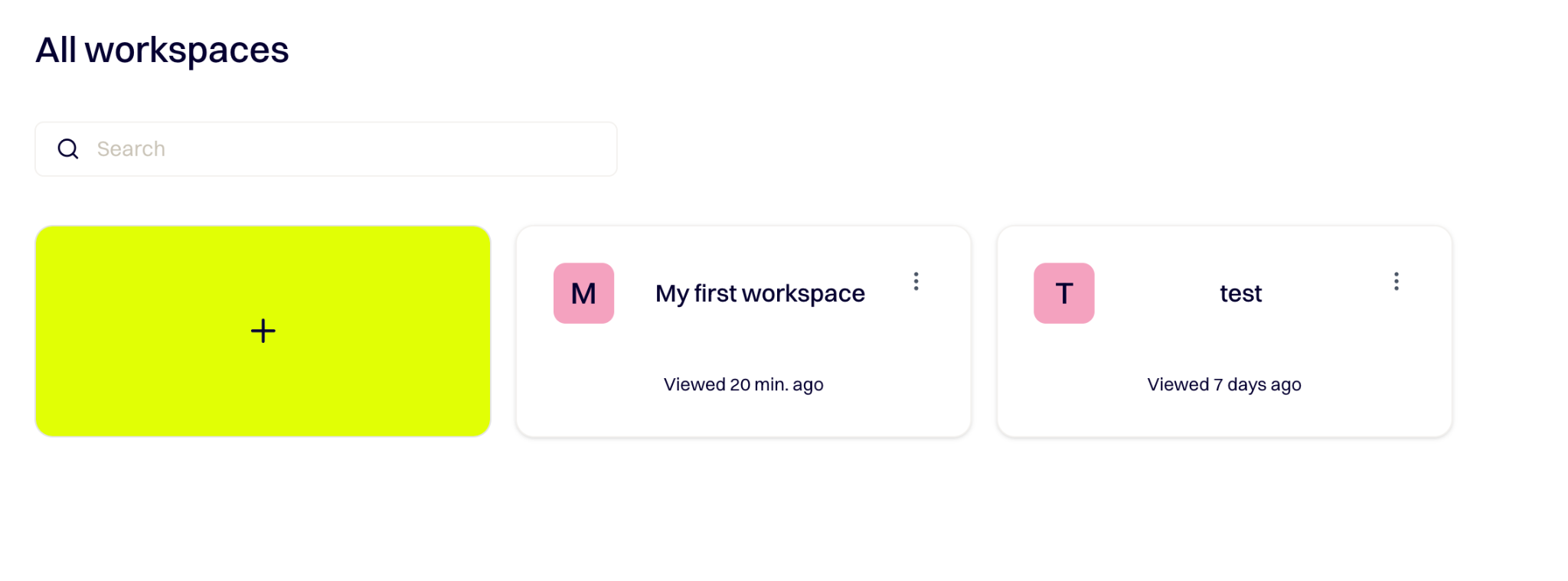
Below the workspace switcher, the sidebar holds the Data Room shortcut (Documents and Strategy Hub), a Create Project button, and Folders.
Projects are grouped into folders or left in Unassigned. The folder-plus icon creates a new folder, and All folders and All projects at the bottom let you browse everything you have made.

Each project listing shows how many nodes are on its canvas and when it was last edited.
The Dashboard
The Dashboard greets you with a single prompt box (“Ask AI Agent for a…”) where you describe what you want, just as you would brief someone on your marketing team.
Underneath the box is a row of output types you can pick before you generate:
- Image
- Video
- Audio
- Text
- Code
- Web, for research
- AI, which lets the Agent choose the best format for your request
To get started, submit a prompt and the Agent creates a new project and drops you onto its canvas.
You could write something like: “Draft 5 Instagram captions for our new coffee brew launch aimed at Gen Z” and the agent will ask any clarifying questions before it begins producing outputs.

Projects and the canvas
A project opens as an infinite drag-and-droppable canvas. When you start from a prompt, the AI Agent adds an AI Agent Brief node that restates your request and lays out a plan, then generates the content as connected nodes you can follow left to right.
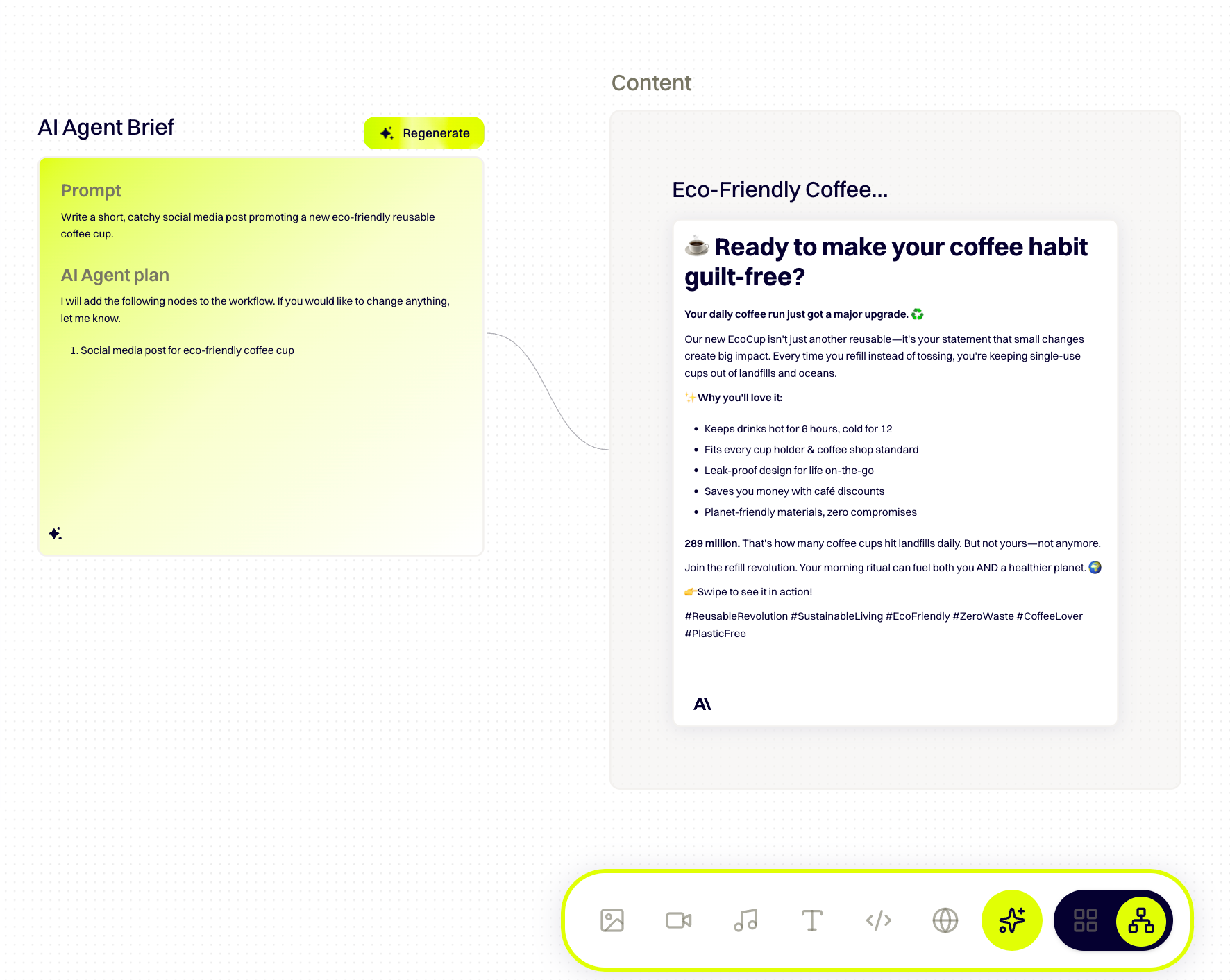
You can also create a project from scratch (Create Project) and build the entire workflow yourself. Each generated piece, such as a social post or an image, becomes its own node, and the connecting lines show how one feeds into the next.
Use the Regenerate button on any node to redo just that step, or Run again at the top right of the canvas to rerun the whole project.
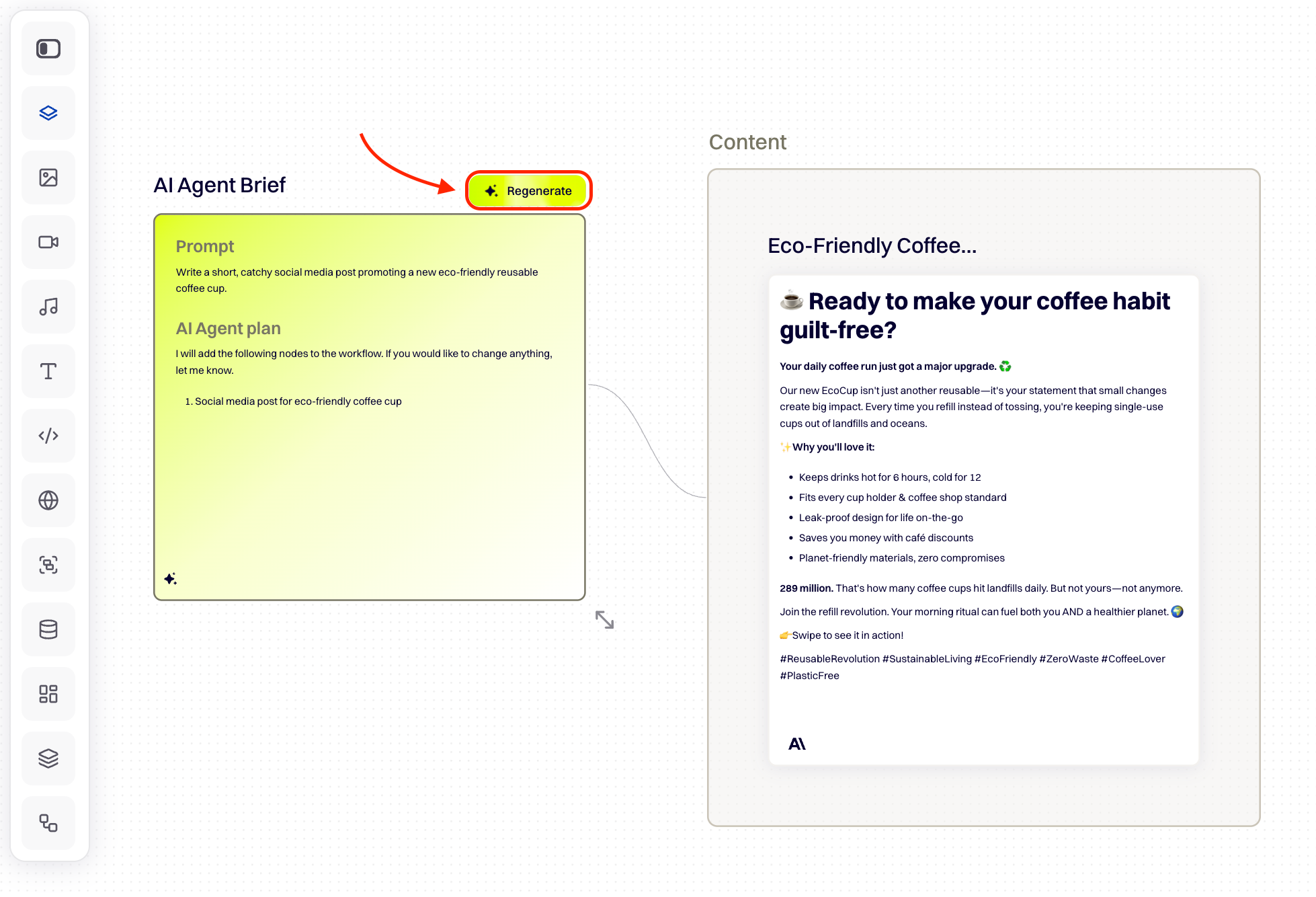
The Canvas Tools
The left-hand side rail holds the tools you can add to the canvas. They cover every output type — image, video, audio, text, and code — plus Research tools for pulling in data, Utilities for annotating the canvas, and shortcuts to your Data Room.
A Workflow Templates entry at the top lets you drop in a ready-made multi-step workflow instead of building from scratch.

Open any category to expand it to show the models or providers available for that type. For example, an image node can run on OpenAI, Google (Nano Banana, Nano Banana 2, and Nano Banana Pro), Black Forest Labs, Stability AI, ByteDance, Qwen, Ideogram, Recraft, or Runway.
To configure an item, double-click it in the panel that opens on the right, then click Generate to have the AI carry out the task you’ve set up.
The bottom toolbar also switches how the canvas is shown: a flow view that lays out your nodes and their connections, and a gallery view for the selected generator (for example the AI Image Generator) with example creations for inspiration.

Once you have a result, you can export it or click Run again to rerun the whole project. The undo, redo, and history controls let you step back through earlier changes.

The export button lets you download selected nodes or the entire project in a format that fits your needs:
|
Format |
Best for |
|
|
Non-editable files |
|
DOCX |
Editable documents |
|
PPTX |
Presentations |
|
Assets |
The raw generated files on their own |
Working with the AI Agent
Clicking AI Agent in the bottom-right of a project opens a chat panel alongside the canvas. This is where you talk to the Agent in plain language and it builds your workflow.

As it works, the panel shows its thinking step by step: analyzing what you asked for, deciding which nodes are needed, and planning the workflow phases before it sets the nodes up on the canvas.
Generated pieces appear in the panel with an Open link so you can jump straight to them. The Ask anything box at the bottom lets you keep the conversation going to refine the plan, add nodes, or change direction without starting over.

Version history
In case an edit to a node breaks your workflow or you just want to revert to an earlier version of your agent workflow, the clock icon in the top bar opens Version history, where you can view and restore earlier versions of a project.

Each entry lists how many nodes and connections it had, when it was saved, and who saved it, and you can bookmark the versions you want to keep around longer.
From here you can restore any version with a single click, or clear the history entirely.

Data Room
The Data Room is where your media and assets live, split into 2 areas: Documents and Strategy Hub.
- Documents: A repository for the files and links you upload
- Strategy Hub: A structured profile of your brand, market, and strategy

Documents
The Data Room lets you add data by dragging in files such as TXT, DOCX, PPTX, CSV, PDF, MPEG, MP4, MOV, and AVI, or by adding a website URL so the AI can draw on your site’s own content.

Here, you can bring more material in whenever you need it. The Add data menu also lets you paste in website links or jot down a quick note to use as source material.
Strategy Hub
It organizes your brand and market knowledge into 5 tabs, each holding its own set of cards:
|
Tab |
What it covers |
|
Who we are |
Core identity and brand fundamentals |
|
Where we play |
Market landscape, customer segments, and competitive positioning |
|
When it happens |
External forces and market timing |
|
What we offer |
What the business offers and how it works |
|
Why it matters |
The value your work delivers to employees and customers |
You can let the AI generate a card for you (generation takes roughly 15 minutes) or build one with Add from File, drawing on the material in your Documents. Each tab also has category filters so you can narrow down a long list, for example Brand and Company under Who we are, or Customer and Market under Where we play.
Every card follows the same pattern: click View Details to open it, review its Completed, Quality %, and Updated status, then use Edit Content or Edit Summary to revise the generated text, or Add from File to bring in your own source material.

Frequently asked questions
Yes, you can reuse a workflow. Any project you build on the canvas can be saved as a reusable Workflow Template and run again whenever a similar task comes up.
To compare competitors, add research nodes to a project to gather what your competitors are doing, then lay the results out side by side on the canvas. The project stays in your folders so you can revisit or rerun it whenever you need an update.
Yes, AI Marketing Agent generates images from your prompts, and you can upload your own too, though stock imagery isn't supported. Image generation sits alongside video and music options in the Dashboard toolbar, part of a broader set of content types you can create.
AI Marketing Agent stores anything you add to the Data Room, such as uploaded files, website links, videos, PDFs, slide decks, and briefs, along with the brand and market details you build in Strategy Hub. The AI draws on all of it to shape its output across your projects, and you can delete any of it at any time.
If you cancel your subscription, your data stays in the platform's database until the account itself is deleted. Deleting a project while your subscription is active deletes its contents too, the same way deleting a folder on your computer takes everything inside it.